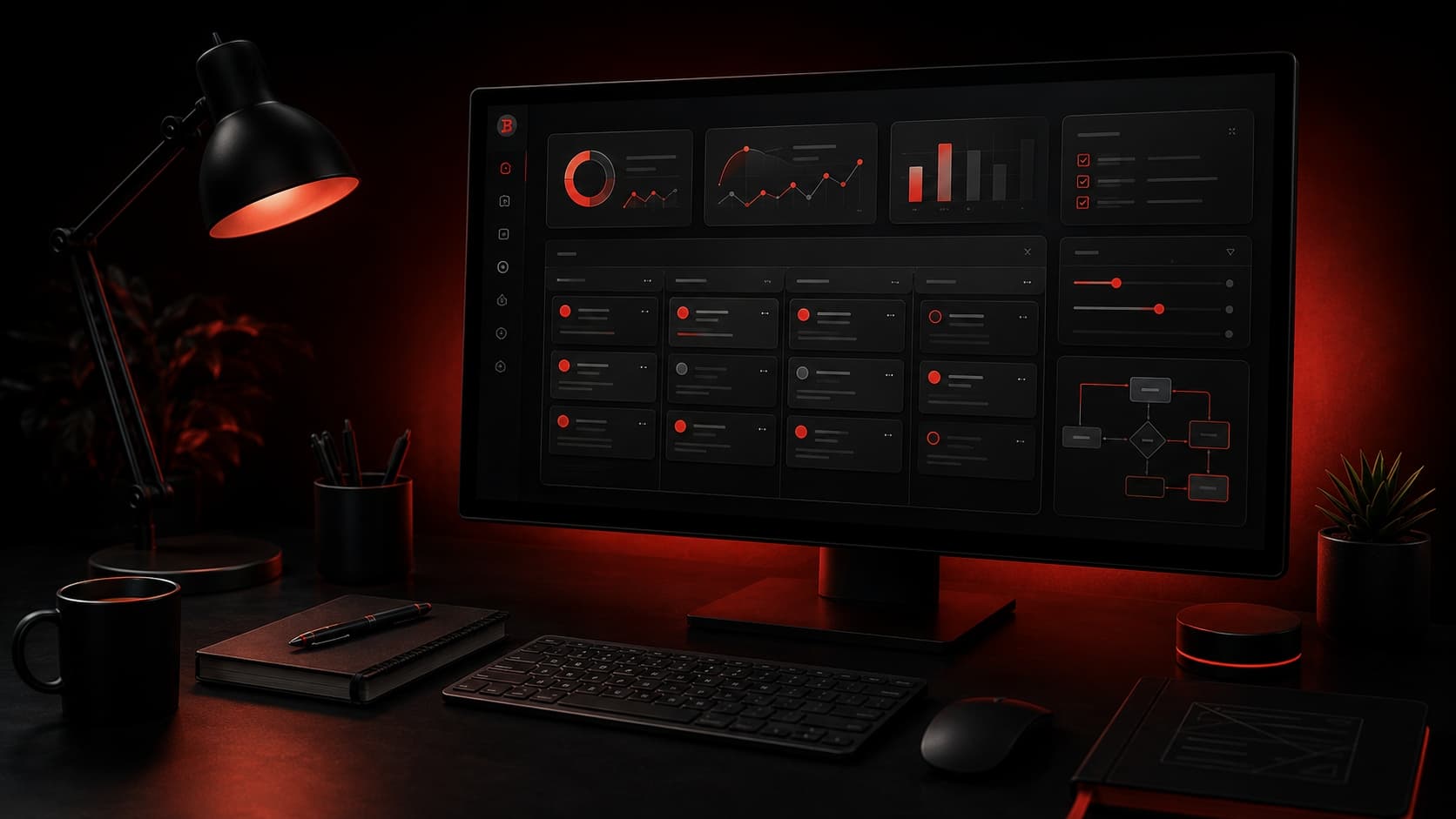
How admin dashboards reduce operational work
A good dashboard turns repeated manual tasks into a clear workflow your team can run every day.
Many businesses lose time because important data is scattered across messages, spreadsheets, and manual updates. An admin dashboard brings the daily workflow into one structured place.
The best dashboard is not the one with the most charts. It is the one that helps the team complete tasks faster, spot issues earlier, and manage data without needing a developer for every small change.
A dashboard becomes valuable when it matches the way the team already works. The interface should reduce decisions, not add more steps.
Good admin software also protects the business with permissions, clean records, audit-friendly data, and clear ownership of tasks.
“Internal software should make the team faster, not create another place to get lost.”
Key takeaways
What you should remember
Dashboards are most useful when they focus on daily tasks.
Role-based access protects data and keeps screens relevant.
Tables, filters, and statuses should match real team workflows.
Reporting should show what needs action, not only what happened.
Useful dashboard modules
Role-based access for team members
Clear tables and filters for daily data
Status tracking for orders, bookings, or requests
Reports that show what needs attention
Admin features that save time
Bulk actions for repeated updates
Searchable records with smart filters
Notifications for important status changes
Export options for accounting or team reporting
Start with the real workflow
Dashboard planning should begin with the team process, not with chart ideas. Every module should solve a daily operational need.
Map who creates, reviews, approves, and updates each record.
Identify repeated manual actions that can become buttons or automations.
Decide which data should be visible to admins, managers, and staff.
Make data easy to act on
A good dashboard helps the team know what to do next without opening multiple tools.
Use clear statuses so every record has a next action.
Add filters for urgent, pending, completed, and failed items.
Show summary metrics that help managers spot problems quickly.
Practical checklist
Use this before you build
User roles and permissions are defined
Main records and statuses are listed
Daily team actions are mapped
Important filters and search fields are planned
Reports answer real business questions
Admin dashboard works clearly on laptop screens
Next steps
How to move forward
Write the current manual process step by step.
Convert repeated tasks into dashboard modules.
Build the first admin flow, test with the team, and improve.
Need help?